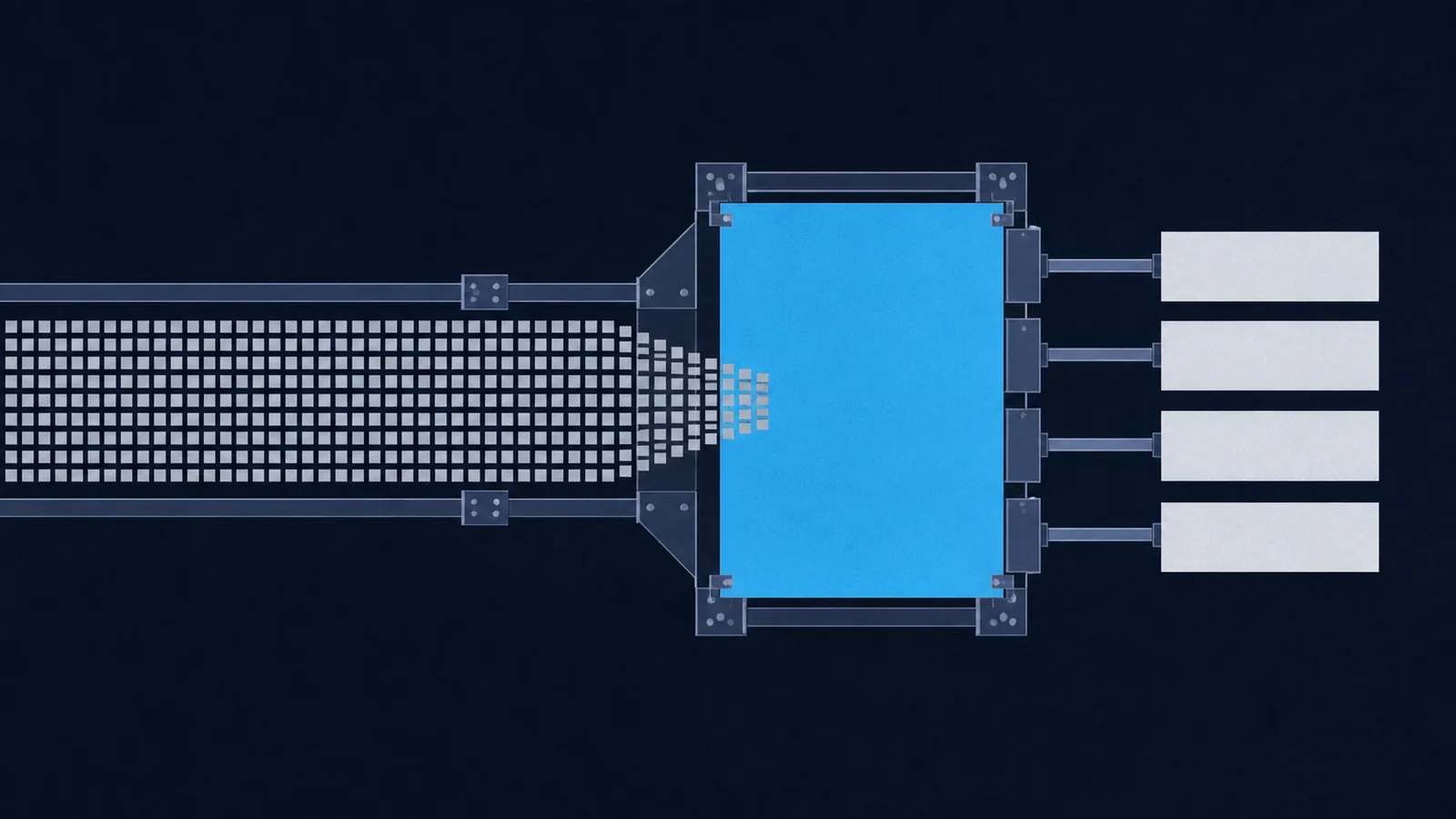
Ghidra turns a compiled binary back into readable C
Ghidra is a free, open-source reverse engineering framework released by the NSA. It decompiles compiled binaries back into readable C-like pseudocode, which lets you understand what a program does without running it. For CTF reverse engineering challenges, that matters, because most RE flags are either stored as strings inside the binary, computed through a series of transformations you need to invert, or gated behind a comparison you need to satisfy.
Ghidra handles ELF binaries (Linux), PE binaries (Windows .exe), Mach-O binaries (macOS), and raw shellcode. It supports x86, x86-64, ARM, MIPS, and many other architectures. Unlike IDA Pro (expensive) or Binary Ninja (subscription), Ghidra is completely free and runs on Linux, macOS, and Windows.
This guide is written for CTF beginners who have a binary to analyze but have never used a decompiler. It links from reverse engineering writeups on this site so you can come back here when you encounter a new tool or technique.
strings and ltrace before opening a decompiler. If you are not yet comfortable with the terminal, read the Linux CLI for CTF Challenges guide first.Installing Ghidra
Ghidra requires a JDK (Java Development Kit) version 21 or newer. Install the JDK first, then download Ghidra from the official site.
Linux (Debian / Ubuntu / Kali)
# Install JDK 21sudo apt update && sudo apt install openjdk-21-jdk# Verify Java version (should print 21.x.x or higher)java -version# Download the latest Ghidra release from:# https://ghidra-sre.org/# (look for ghidra_11.x.x_PUBLIC_YYYYMMDD.zip)# Unzip to a permanent locationunzip ghidra_11.x.x_PUBLIC_*.zip -d ~/tools/# Launch Ghidra~/tools/ghidra_11.x.x_PUBLIC/ghidraRun
macOS / Windows
On macOS, install JDK 21 via Homebrew (brew install openjdk@21) then download and unzip Ghidra. On Windows, download JDK 21 from adoptium.net, then run ghidraRun.bat from the extracted folder. The UI is identical across all platforms.
First launch: creating a project
When Ghidra opens, it shows the Project Manager. Every binary you analyze lives inside a project. Create one with File > New Project, choose a directory (a folder named after the CTF event works well), and name the project. You only need to do this once per CTF.
sudo apt install ghidra), but this version is often one or two releases behind. For the latest features, install directly from ghidra-sre.org.Importing a binary
With your project open, import the challenge binary via File > Import File (or drag and drop the file onto the project window). Ghidra will open an Import dialog showing the detected file format and architecture. For most picoCTF challenges (64-bit Linux ELF binaries), it guesses correctly. Accept the defaults and click OK.
Opening CodeBrowser and running auto-analysis
After import, double-click the binary in the project window to open it in CodeBrowser, which is the main analysis window. Ghidra will ask if you want to run auto-analysis. Click Yes and accept all defaults. This takes 10 to 60 seconds depending on binary size. Auto-analysis identifies functions, resolves cross-references, and produces the initial decompiler output.
CodeBrowser panels at a glance
main or any named function instantly.file ./binary in the terminal.Reading the decompiler output
The Decompiler panel shows C-like pseudocode that approximates what a human programmer might have written. It is not perfect, but it is close enough to understand control flow, variable relationships, and comparisons, which is all you need for most CTF challenges.
It helps to know what you are looking at. Ghidra was built by the US National Security Agency and open-sourced in March 2019 under the Apache 2.0 license. Its decompiler does not translate assembly to C directly: it lifts each instruction into an intermediate representation called P-Code, then analyzes that. Because the analysis happens on P-Code rather than on x86 specifically, the same decompiler works across the dozens of processor families Ghidra ships definitions for, which is why an ARM, MIPS, or PowerPC challenge binary opens just as readably as an x86 one.
What to ignore
The decompiler output contains a lot of noise. You can safely ignore most of it at first:
- Excessive casts like
(int)(char)(uint)variable: these are artifacts of the decompiler reconstructing types it is uncertain about. - Variable names like
local_18,param_1: these are stack offsets and register names assigned automatically. Rename them once you understand their purpose. - Pointer arithmetic that looks complex: focus on the high-level conditional structure first, then zoom into the math if you need to.
What to focus on
- Conditionals:
ifstatements that compare user input to a stored value or a computed result are almost always the flag check. - String references: any string literal in the decompiler is a lead. Strings like
"Correct!","Wrong password", or a partial flag like"pico"point you toward the relevant code path. - Function calls: calls to
strcmp,memcmp,strncmp, or a custom function named something likecheck_flagare the most common flag-comparison sites.
Renaming variables
As you understand what a variable does, rename it: right-click the variable name in the Decompiler panel and choose Rename Variable (or press L). The new name appears everywhere that variable is used. This makes the pseudocode dramatically easier to read within a few renames.
// Before renamingif (local_18 == param_1) {puts("Correct!");}// After renaming local_18 -> user_input, param_1 -> expected_flagif (user_input == expected_flag) {puts("Correct!");}
When the decompiler output is unreadable
If the pseudocode is a wall of runtime calls, giant switch tables, or functions with names like runtime.mallocgc, the binary probably was not written in C, and Ghidra is faithfully decompiling a language runtime rather than the program logic. Reversing a different language is a different job, not a harder version of this one:
- Go and Rust binaries are statically linked and enormous, and the interesting code is a thin layer over the runtime. See reversing Go and Rust binaries.
- A Python binary is usually a PyInstaller bundle, so you extract and decompile bytecode instead of reading assembly. See reversing Python binaries.
- Java and Android targets decompile back to near-original source with the right tool, which makes Ghidra the wrong choice entirely. See Java reverse engineering and APK reversing.
- A
.wasmfile is a WebAssembly module with its own toolchain. See WebAssembly reversing.
Checking file output and running the binary through the file magic identifier before importing takes ten seconds and saves you from an hour of reading the wrong thing.
Finding flags in strings
Many CTF binaries embed the flag as a plaintext string or compare user input against a stored string constant. Ghidra's Defined Strings window lets you search all string data in the binary without reading any assembly.
Ghidra finds more than strings does, and the reason is structural. The Unix strings(1) command scans for runs of at least 4 printable characters with no knowledge of the file, while Ghidra parses the ELF section table and knows which regions are .rodata, which are code, and which addresses reference each. That is why the Defined Strings window can tell you where a string is used, which is almost always the question you actually have.
Opening the Defined Strings window
Go to Window > Defined Strings. This lists every string Ghidra found in the binary's data sections. The table shows the address, string length, and value. You can sort by value or search within it.
Use the filter box at the top of the Defined Strings window and type pico, flag, or CTF to narrow the list. If the flag is stored in plaintext, it appears here immediately.
Jumping to a string and finding its references
Double-clicking any string in the Defined Strings list jumps to its address in the Listing pane. From there, right-click the address label and choose References > Find References to Address. This shows every place in the code that reads or uses that string. Double-clicking a reference jumps into the function that uses it, which is often the comparison or print routine you care about.
When the flag is not a literal string
Some challenges obfuscate the flag: it may be XOR-encoded, base64-encoded, or constructed character by character at runtime. In those cases, the Defined Strings window will not show the complete flag, but it may show partial strings or encoding artifacts that hint at the encoding scheme. The full flag reconstruction then happens in the decompiler view.
Two things help before you go back to the decompiler. Run the binary through the strings extractor in the browser to get the raw strings view alongside Ghidra's parsed one, since the two disagree in useful ways on packed and obfuscated binaries. Then, if the artifacts look like an encoding rather than a cipher, the CTF encodings guide covers what base64, hex, and XOR-encoded blobs look like in the wild, and reading hex dumps covers how to spot structure in the bytes themselves.
Challenges where strings analysis is central
Navigating functions with Symbol Tree
The Symbol Tree (top-left panel, Functions folder) lists every function Ghidra identified. For stripped binaries, these will be named FUN_00401234 (address-based). For unstripped binaries, you get the original names: main, check_flag, validate_input, etc.
Starting from main
Always start with main. Expand the Functions folder in the Symbol Tree, find main, and double-click it. The Listing and Decompiler both jump to that function. Read the decompiler output top-to-bottom, following any function calls that look related to input or flag validation.
Finding the key comparison function
Scan the decompiler output for calls to standard library functions:
strcmp(user_input, secret): compares two null-terminated strings. The second argument is often a hardcoded string or a pointer to data you can read.memcmp(buf1, buf2, n): comparesnbytes. Often used when the flag is binary data rather than a printable string.strncmp(user_input, secret, n): compares only the firstncharacters. Common in challenges that check the flag prefix separately.
When you find a comparison, click the second argument (the expected value) in the Decompiler. If it is a pointer to a string, Ghidra highlights the string in the Listing. If it is a local variable, trace where it was assigned earlier in the function.
Tracing data flow backwards
If the expected value is computed (not a literal), you need to trace backwards from the comparison. Right-click the variable in the Decompiler and choose Find References to see all assignments. Follow the chain of assignments until you reach a constant, a user-controlled value, or a formula you can invert. This is the core skill of reverse engineering.
Patching binaries (skip checks)
Sometimes understanding the flag logic is harder than patching the binary to always take the success path. If a program prints the flag only when a comparison succeeds, you can flip the conditional jump so it always jumps to the success block, regardless of your input.
On x86 this is usually a one-byte edit. Per the Intel manuals, the short-form conditional jumps are two bytes: an opcode plus a signed 8-bit displacement. je is 0x74 and jne is 0x75, so inverting a check means changing a single byte from 74 to 75. Replacing the opcode with 0xEB (short jmp) makes the branch unconditional, and 0x90 (nop) removes it entirely. Those three values cover nearly every patch a CTF binary needs.
Patching a jump instruction
In the Listing pane, find the conditional jump instruction that guards the flag print. Common ones are JNZ (jump if not zero), JNE (jump if not equal), or JZ (jump if zero). Right-click the instruction and choose Patch Instruction. Change JNZ to JMP (unconditional jump) to always fall through to the success path, or change it to NOP (no operation) to remove the jump entirely.
Exporting the patched binary
After patching, export the modified binary via File > Export Program. Choose format Original File to export only the bytes (not a Ghidra project file). Mark the exported file as executable and run it:
chmod +x patched_binary./patched_binary# Enter any input when prompted -- the jump is gone
Patching is a large enough topic to have its own guide. For the full treatment, including patching from the command line without a GUI, keeping a byte-for-byte patch log, and the cases where a patched binary refuses to run at all, read binary patching for crackmes.
Ghidra scripting basics
Ghidra ships with a Script Manager that lets you run Python (Jython) or Java scripts against an open binary. For CTF work, scripting is useful when you need to automate repetitive tasks: extracting every string from a specific function, XOR-decoding an embedded blob, or iterating through a large lookup table.
Opening the Script Manager
Go to Window > Script Manager. Ghidra ships with dozens of example scripts. You can create your own by clicking the New Script button (top-left of the Script Manager window) and choosing Python.
Example: print all string references from a function
The following Jython script iterates over every instruction in the current function and prints the address and value of any string it references. Paste it into a new script file and click Run:
# Ghidra Jython script# Prints all string cross-references from the current functionfrom ghidra.program.model.symbol import RefTypefunc = getFunctionContaining(currentAddress)if func is None:print('No function at cursor')else:body = func.getBody()listing = currentProgram.getListing()for instr in listing.getInstructions(body, True):for ref in getReferencesFrom(instr.getAddress()):if ref.getReferenceType() == RefType.DATA:data = listing.getDataAt(ref.getToAddress())if data and data.hasStringValue():print(ref.getToAddress(), '->', data.getValue())
The output appears in the Ghidra console at the bottom of the window. For XOR decoding, replace the inner loop body with your decoding logic and print the decoded bytes as a string.
Recommended RE workflow for CTFs
Follow this decision tree at the start of every reverse engineering challenge. Start fast and cheap, then escalate to heavier tools only when needed.
Quick string grep (10 seconds)
Run strings ./binary | grep -i pico in the terminal. If the flag is stored in plaintext, this finds it instantly. No Ghidra needed.
Dynamic tracing with ltrace and strace (1 minute)
Run ltrace ./binary to see every library call the program makes, including strcmp with its arguments. Run strace ./binary to see system calls. Often you see the expected password passed directly to strcmp and can read it from the trace output.
Open in Ghidra: Defined Strings (2-5 minutes)
Import the binary, run auto-analysis, and open Window > Defined Strings. Search for pico, flag, and CTF. If the flag appears, you are done.
Find main and trace to the key comparison
Navigate to main via the Symbol Tree. Read the Decompiler output. Follow function calls until you reach a strcmp or equivalent. Read the expected value argument.
Rename variables and reconstruct the flag
Rename variables as you understand them. If the flag is computed (XOR, Caesar, etc.), replicate the computation in Python with the known constants and print the result.
Patch the binary as a last resort
If reading the logic is too complex but the binary prints the flag when the check passes, patch the conditional jump and run the modified binary.
Challenges to practice this workflow
Doing them in that order is deliberate. Secure Password Database is a clean read of a single hashing function. Gatekeeper asks you to satisfy a numeric check rather than bypass it, so you have to actually understand the comparison. Hidden Cipher 1 is UPX-packed, which means Ghidra shows you nothing useful until you unpack it, and the flag is XOR-encrypted rather than stored, so the decompiler only hands you the key and you finish the job outside it. If you want the full ladder around this guide, the reverse engineering roadmap sequences every RE post on this site from first crackme to symbolic execution.
Quick reference
Keyboard shortcuts for Ghidra (CodeBrowser) and a comparison table for choosing between common RE tools.
Ghidra keyboard shortcuts
GGo to address (type any address or symbol name)LRename label or variable at cursorCtrl + FSearch within the Listing or DecompilerCtrl + Shift + FFind references to the current address (cross-references)Alt + LeftNavigate backward (like browser Back)Alt + RightNavigate forwardDDisassemble at cursor (force-disassemble undefined bytes)FCreate function at cursorCtrl + ZUndo last change (patch, rename, etc.)SpaceToggle between Listing and Decompiler focusTool comparison
| Tool | Cost | Decompiler | Best for | Difficulty |
|---|---|---|---|---|
| Ghidra | Free | Yes | All CTF RE, beginners, multi-architecture | Medium |
| IDA Free / Pro | Free (limited) / $1,000+ | Pro only | Industry standard, better UI for some | Medium |
| Binary Ninja | Free (cloud) / $299/yr | Yes | Scripting, clean UI, intermediate users | Medium |
| strings | Free | No | First-pass flag search, plaintext flags | Easy |
| ltrace / strace | Free | No | Dynamic tracing, seeing strcmp arguments live | Easy |
RE challenge checklist
- Run
file ./binaryto confirm architecture (32-bit vs. 64-bit, stripped vs. not). - Run
strings ./binary | grep -i picobefore opening any decompiler. - Try
ltrace ./binarywith a dummy input and read thestrcmparguments in the output. - In Ghidra, always run auto-analysis before trying to read anything.
- Start from
mainin the Symbol Tree, not from a random address. - Rename variables as soon as you understand them. Unreadable names slow you down.
- When you find a comparison, click through to the expected-value argument before assuming you need to do complex math.
Sources and further reading
The decompiler is an approximation. When its output is ambiguous, these are what you check it against.
- The Ghidra project site and its source repository, including the P-Code documentation that explains how one decompiler handles every supported architecture.
- The ELF specification for the sections and symbols the importer is reading, and the System V AMD64 ABI for the calling convention Ghidra uses to recover function parameters.
- The Intel software developer manuals for instruction encodings when you patch bytes by hand, and strings(1) for the cruder tool worth running first.