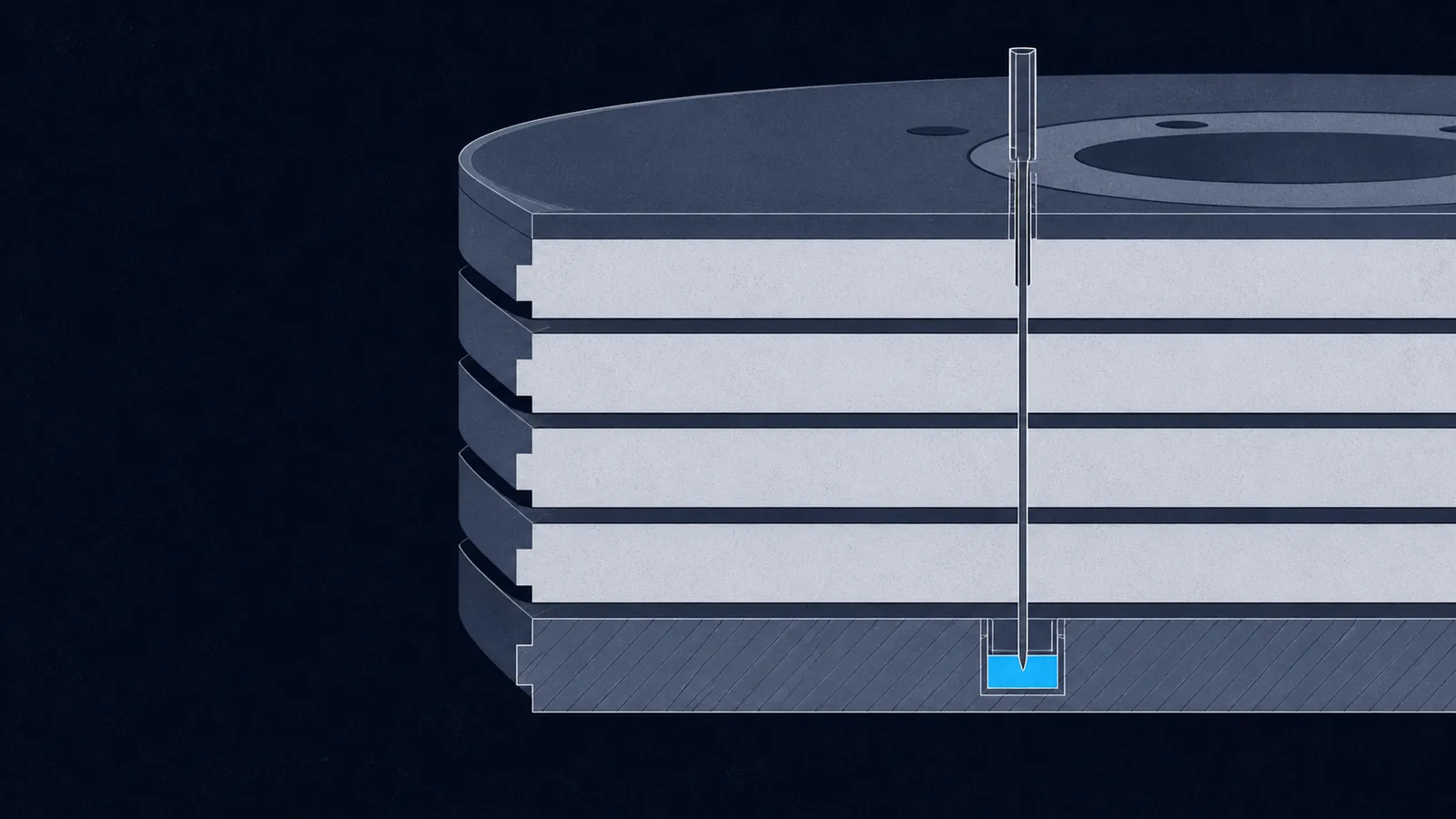
The first time I downloaded a disk image in CTF, I ran file on it, got back Linux ext4 filesystem data, and stared at my terminal for fifteen minutes. I had no idea what to do with that information.
I googled "CTF disk forensics." I got a list of tools: Autopsy (a graphical forensics platform), The Sleuth Kit (TSK), binwalk, foremost. I installed Autopsy. It took four minutes to load. By the time I had the image open, the challenge was over. Zero points.
Later I learned to run strings image.img | grep picoCTF first. Thirty seconds. If it works, you are done. And if it does not work, that silence is specific information: the flag is not stored as readable text anywhere in the raw bytes. Binary, compressed, or embedded inside another file. Each of those states has a different next step.
That is what this article is about. Every CTF write-up I found showed me the winning command. None of them explained what to do when that command came up empty. The decision tree between tools, the part that actually takes time to learn, was just not written down anywhere.
Here is the map, rung by rung.
Triage first: two commands, two minutes
Before reaching for any specialist tool, run two commands. They take under two minutes and they eliminate entire categories of approaches.
Command 1: identify the image format.
file image.img# Examples of what you might see:# DOS/MBR boot sector; partition 1 : ID=0x83, active, start-CHS ...# Linux rev 1.0 ext4 filesystem data# DOS/MBR boot sector, code offset 0x58+2, OEM-ID "mkfs.fat"
The file command reads the first ~262 bytes and compares them against a magic-byte database. It does not care about the file extension. A .img renamed from a .zip will report as a ZIP archive. This tells you the filesystem type (ext4, FAT32, NTFS), which determines which tools can parse it.
Command 2: search for a plain-text flag in the raw image.
strings image.img | grep -i picoctf# or with The Sleuth Kit's version:srch_strings image.img | grep -i 'picoCTF{'
The strings command scans every byte in the image for sequences of four or more printable characters. It has no filesystem awareness; it reads raw bytes. This means it finds text in regular files, deleted file remnants, slack space between files, and filesystem metadata all at once, without any mounting or parsing.
A strings search that returns nothing is not a dead end. It tells you the flag is not stored as readable text anywhere in the image. That is your first real clue about where to look next.If strings finds the flag: you are done. If it finds nothing useful: the flag is binary, compressed, encoded, or embedded inside another file. Move to the ladder.
-i to your grep call: grep -i picoctf. Some challenges store the flag in all-caps metadata or filenames where lowercase-only grep would miss it.The ladder
Six rungs. Each one covers a distinct hiding technique. The signal column says why you are here; the tool column says what to run; the receipt column is a picoCTF challenge that uses exactly this technique.
| Rung | You are here because... | Key tool | picoCTF receipt |
|---|---|---|---|
| 0 | You have not run strings yet (always start here) | strings / srch_strings | Disko 1 |
| 1 | strings returned nothing; you need to navigate the filesystem | mmls + fls + icat | Disk Disk Sleuth II |
| 2 | You know a file path, or want to browse the directory tree | mount -o loop / Autopsy | Operation Oni |
| 3 | File is larger than expected; binwalk finds offsets inside it | binwalk --dd / foremost | Matryoshka Doll |
| 4 | Challenge description mentions nesting; archive count is huge | tar / zip shell loop | like1000 |
| 5 | Image renders truncated or the viewer shows only part of it | xxd + hex editor | tunn3l v1s10n |
Rung 0: raw string scan
A raw string scan is the thirty-second triage that solves a surprising number of disk challenges outright. Disko 1 is a FAT32 image with the flag stored as a plain string inside the filesystem. No mounting required. strings | grep finds it immediately.
# Standard approachstrings image.img | grep -i picoctf# With The Sleuth Kit's srch_strings (-t d prints each match's byte offset):srch_strings -t d image.img | grep -i 'picoCTF{'# If the image is gzip-compressed first:gunzip image.img.gzstrings image.img | grep -i picoctf
The difference between strings and The Sleuth Kit's srch_strings: srch_strings is TSK's bundled clone of GNU strings, so both scan raw bytes with no filesystem awareness. The reason to reach for it is the -t flag, which prints the byte offset of each match (-t d decimal, -t x hex). That offset lets you jump straight to the match with xxd -s or map it back to a partition using the ranges from mmls. For a quick CTF triage, plain strings is usually enough.
Also works with Disk Disk Sleuth (2021), which is an Alpine Linux ext4 image. The flag is a plain text file somewhere on the filesystem; strings finds it without any partition offset math.
Rung 1: filesystem navigation without mounting
When strings comes up empty, you need to look at the image as a filesystem, not just a bag of bytes. The Sleuth Kit gives you three commands that do this without mounting the image: mmls, fls, and icat.
Step 1: read the partition table with mmls.
mmls image.img# Sample output:# DOS Partition Table# Slot Start End Length Description# 000: Meta 0000000000 0000000000 0000000001 Primary Table (#0)# 001: ---- 0000000000 0000002047 0000002048 Unallocated# 002: 000 0000002048 0000262143 0000260096 Linux (0x83)# The number you need: the Start sector of the Linux partition (2048 here).
The Start value is in 512-byte sectors. Every subsequent TSK command takes this as its -o offset flag.
Step 2: list all files (including deleted ones) with fls.
# -r recursive, -p print full paths, -o partition offsetfls -r -p -o 2048 image.img# Grep for a specific filename:fls -r -p -o 2048 image.img | grep flag# Show only deleted entries:fls -r -p -d -o 2048 image.img
Each line shows a type (r/r = regular file, d/d = directory), the inode number, and the path. A * prefix on a line marks a deleted entry whose inode has not yet been overwritten.
fls can still see deleted files and icat can still read them.Step 3: extract the file content by inode with icat.
# Replace 18582 with the inode number from fls outputicat -o 2048 image.img 18582# Save to a file instead of printing:icat -o 2048 image.img 18582 > recovered_flag.txt# For deleted files that may have partial inode metadata:icat -r -o 2048 image.img 18582 > recovered.txt# -r enables recovery heuristics (ext2/3 may zero block pointers on delete)
Receipt: Disk Disk Sleuth II hides a file called down-at-the-bottom.txt inside an Alpine Linux ext4 image. strings finds nothing useful (the file content is not in any easily greppable location). The mmls + fls + icat workflow finds it in three commands.
Receipt: Sleuthkit Intro asks you to report the Linux partition size in sectors; that is just reading the Length column of mmls output.
Rung 2: mount or browse the filesystem
Sometimes the quickest path is just to mount the image and use normal Linux commands. This is the right move when you know a file path, want to browse the directory tree interactively, or need to read files that are not plain text (bash history, config files, SSH keys).
Mount with a known partition offset.
# Get the start sector from mmls first:mmls image.img # note the Start sector, e.g. 2048# Multiply by 512 to get the byte offset:sudo mkdir -p /mnt/imagesudo mount -o loop,ro,offset=$((2048 * 512)) image.img /mnt/image# Browse normally:ls /mnt/image/cat /mnt/image/root/flag.txt# Always unmount when done:sudo umount /mnt/image
The -o ro flag mounts read-only. Good practice: a write-enabled mount can update access timestamps and alter journal entries, which matters for evidence integrity and can also confuse your analysis.
For images with no partition table (flat filesystem images), skip the mmls step:
sudo mount -o loop,ro image.img /mnt/image
When Autopsy is better than a command-line mount. Use the Autopsy graphical platform when you need to browse deleted files and slack space in the same view, or when the image is in a non-raw format (E01/Expert Witness Format, VMDK). For a simple "find the file at this path" challenge, mount -o loop is faster. For anything involving deleted files or unknown directory structure, Autopsy is worth the two-minute startup cost.
# Open Autopsy, create a new case, add the image as a data source.# Navigate the file tree under 'Data Sources' to find the file.# Right-click any file to extract it.
Receipts: Operation Oni hides an SSH private key at /root/.ssh/id_ed25519 inside a disk image. Mount it and read the key. Operation Orchid stores the AES decryption password in /root/.bash_history. Bash history is one of the first places a forensic investigator checks; commands run with inline passwords (like openssl -k password) persist there long after the session ends.
Receipt: Disko 3 demonstrates the negative evidence transition perfectly. strings disko-3.dd | grep -i pico returns nothing because the flag is stored inside a flag.gz compressed file in the /log/ directory. Mount the image, navigate to that directory, copy flag.gz out, and gunzip it.
Rung 3: embedded files and polyglots
A polyglot file is simultaneously valid in two formats. A JPEG that is also a ZIP archive is the classic example. JPEG parsers stop reading at the end-of-image (FF D9) marker and silently ignore anything after it. ZIP tools locate the end-of-central-directory record by scanning backward from the end of the file, so they find the archive regardless of what comes before it. Appending a ZIP after a JPEG produces a file that image viewers display as a normal photo while unzip extracts a hidden archive.
Binwalk finds these by scanning every byte of a file against a database of magic-byte signatures. It reports what it finds and at which offset.
Triage first: scan without extracting.
binwalk image.jpg# binwalk also has an entropy analysis mode:# A sudden spike in entropy mid-file signals something compressed or encrypted.binwalk -E image.jpg
If binwalk reports embedded files, extract them.
# -e extracts all types with built-in handlers (zip, gzip, tar, etc.):binwalk -e image.jpg# --dd='.*' extracts everything by raw bytes, including unrecognized types:binwalk --dd='.*' image.jpg# Extracted files land in _image.jpg.extracted/ in the current directory.
FF D8 FF; a ZIP starts with PK 03 04. Carvers scan every byte of the image looking for these patterns, then extract the bytes from that offset forward until they find a known end marker or hit a configured size limit. This works on deleted files, files embedded inside other files, and data in filesystem slack space.Foremost as a second pass. If binwalk -e produces junk output or misses something, run foremost as a backup. Foremost uses header-plus-footer carving (it finds the header, then searches forward for the matching footer) and handles some formats, including legacy Microsoft Office files, better than binwalk.
foremost -i image.img -o recovered/ls recovered/ # subdirectory per type foundcat recovered/audit.txt # log of what was found and where
Receipts: Matryoshka Doll nests four JPEG+ZIP polyglot layers. Each image contains another image inside it as an appended ZIP. binwalk --dd='.*' dolls.jpg extracts the first layer; repeat on each inner image until you reach flag.txt. hideme is a single PNG+ZIP polyglot. Because ZIP tools find the end-of-central-directory at the end of the file regardless of prefix, you can solve it with just unzip flag.png without even running binwalk.
The best thing about polyglot files: once you know how ZIP parsers work, you can sometimes skip binwalk entirely. unzip file.jpg works directly on any JPEG+ZIP, no extraction step required.Rung 4: nested archives
Some challenges skip the forensics tooling entirely. The data is not hidden; it is just buried under a thousand layers of compression. The challenge description usually gives it away: "this tar file was tarred 1000 times."
Manual extraction does not scale. Write a loop.
# like1000: the outer archive is 1000.tar, which contains 999.tar, down to 1.tarfor i in $(seq 1000 -1 1); do tar xf $i.tar; donecat flag.txt# More robust version that handles any depth and any naming convention:while ls *.tar 1>/dev/null 2>&1; do tar xf *.tar && rm *.tar; donecat flag.txt# For zip instead of tar:while ls *.zip 1>/dev/null 2>&1; do unzip -o *.zip && rm *.zip; done
Receipt: like1000 is literally named for this technique. The outermost archive is 1000.tar, which contains 999.tar, and so on down to 1.tar. One bash loop, one minute.
The Matryoshka Doll challenge (Rung 3) is a cousin: same recursive structure, but each layer is a JPEG+ZIP polyglot rather than a plain archive. For those, you need binwalk at each layer rather than just tar xf.
Rung 5: file format header repair
You reach this rung when a file you have already extracted (from Rung 1, 2, or 3) renders incorrectly in a viewer: the image is weirdly short, a section is cut off, or the dimensions look wrong relative to the file size. The file itself is valid, but a header field has been deliberately falsified to hide part of the content. Hex editing that field to the correct value reveals what was hidden.
The most common variant in picoCTF is BMP height falsification.
42 4D("BM"). Offset 0x02: file size in bytes. Offset 0x0A: pixel data offset (typically 54 for 24-bit). Offset 0x12: image width. Offset 0x16: image height. Reducing the height field causes image viewers to render fewer rows; the flag sits in the hidden rows at the bottom.# Read the first few rows of the header:xxd image.bmp | head -4# Sample output, width and height are the two 4-byte LE values at 0x12 and 0x16:# 00000010: 2800 0000 6e04 0000 3201 0000 0100 1800# width=0x046e height=0x0132 <-- too small, patch this# Compute the correct height from file size, pixel offset, width, bpp:# pixel_data_size = file_size - pixel_data_offset# row_bytes = floor((width * bpp / 8 + 3) / 4) * 4 # 4-byte aligned# correct_height = pixel_data_size / row_bytes# Patch with vim in binary mode:vim -b image.bmp# In vim: :%!xxd (convert to hex), edit the bytes at 0x16, :%!xxd -r (convert back), :wq# Or use any GUI hex editor (ghex, hexedit, wxHexEditor).
Receipt: tunn3l v1s10n is the canonical example. The BMP file opens and shows a small decoy message, but the height field at offset 0x16 says 306 pixels when the correct value is larger. Patch the field, reopen the image, and the flag appears as drawn text in the previously hidden rows at the bottom.
For the math: width is 1134 pixels (0x046e), bits per pixel is 24. Row size = ((1134 * 3 + 3) / 4) * 4 = 3404 bytes. Divide the pixel data size by 3404 to get the correct height. Write that value at offset 0x16 in little-endian.
See Hex Dumps for CTF for the full xxd cheat sheet and hex editing workflow.
picoCTF challenge guide
Every disk forensics challenge currently on the site, mapped to its rung.
| Challenge | Rung | What you need to do |
|---|---|---|
| Disko 1 (picoGym) | 0 | Plain-text flag in FAT32 image; strings | grep finds it immediately |
| Disk Disk Sleuth (2021) | 0 | Plain-text flag in Alpine Linux ext4; srch_strings finds it without mounting |
| Disko 2 (picoGym) | 1 | Multi-partition image; fdisk -l / mmls to identify the Linux partition, dd to extract it, then strings |
| Disk Disk Sleuth II (2021) | 1 | Locate down-at-the-bottom.txt by name with fls, extract content with icat |
| Sleuthkit Intro (2022) | 1 | Read partition size from mmls output and submit to netcat checker |
| Disko 3 (picoGym) | 2 | strings returns nothing; flag is inside flag.gz in /log/; mount and decompress |
| Disko 4 (2026) | 1/2 | Flag file was deleted; use fls to find the deleted inode, icat to recover it |
| Sleuthkit Apprentice (2022) | 2 | Locate flag.uni.txt in /root/my_folder/; mount or use Autopsy; decode UTF-16 with iconv |
| Operation Oni (2022) | 2 | Extract SSH private key from /root/.ssh/id_ed25519; use it to SSH into the box |
| Operation Orchid (2022) | 2 | Recover AES password from /root/.bash_history; decrypt flag.txt.enc |
| Matryoshka Doll (2021) | 3 | Four nested JPEG+ZIP polyglot layers; binwalk --dd='.*' at each layer |
| hideme (2023) | 3 | Single PNG+ZIP polyglot; unzip flag.png works directly (ZIP finds EOCD from end) |
| like1000 (2019) | 4 | 1000 nested tar archives; for i in $(seq 1000 -1 1); do tar xf $i.tar; done |
| tunn3l v1s10n (2021) | 5 | BMP height field falsified; compute correct value from file size and patch offset 0x16 |
Quick reference
The commands you will reach for on every disk forensics challenge.
| Task | Command |
|---|---|
| Identify image format | file image.img |
| Search for plain-text flag | strings image.img | grep -i picoctf |
| Read partition table | mmls image.img |
| List all files (incl. deleted) | fls -r -p -o 2048 image.img |
| Extract file by inode | icat -o 2048 image.img 18582 |
| Mount read-only (offset from mmls) | sudo mount -o loop,ro,offset=$((2048*512)) image.img /mnt/ |
| Scan for embedded files | binwalk image.img |
| Extract embedded files | binwalk -e image.img |
| Extract all by raw bytes | binwalk --dd='.*' image.img |
| Entropy triage | binwalk -E image.img |
| Carve deleted files | foremost -i image.img -o out/ |
| Unpack nested tars | for i in $(seq 1000 -1 1); do tar xf $i.tar; done |
| Inspect file header bytes | xxd image.bmp | head -4 |
| Unmount when done | sudo umount /mnt/ |
For memory forensics (RAM dumps instead of disk images), the workflow is different: see Volatility 3 for CTF Memory Forensics. For reading and editing raw file headers by hand, see Hex Dumps for CTF. For binwalk in the context of steganography (hiding data in image pixel values vs. appending files), see Introduction to Steganography Tools.
Next time you get a disk image: run strings first. If it works, great. If it does not, now you know exactly what that silence means and where to look next.
Sources and further reading
Disk forensics is filesystem structure plus the fact that deletion usually only unlinks. Both are documented at the format level.
- The ext4 documentation and the FAT32 specification explain what a delete actually changes: FAT overwrites the first byte of the directory entry and frees the cluster chain, while ext4 clears the extent tree. That difference is why file recovery is easy on one and needs carving on the other.
- The Sleuth Kit documentation is the reference for fls, icat, and mmls, the three commands that cover most challenges.
- NIST CFTT publishes validation reports for these tools, which is the answer to whether an artifact is a real finding or a tool artifact.
- file(1) for how content-based identification works and why it is the first command to run on any artifact whose extension you do not trust.